Votes
As part of this advertising campaign, you can attract an engaged audience to any poll on social media, a website, a forum, or a blog, and increase the number of voters for any poll option.
We’ve added the option to vote with deferred confirmation of the task performer’s registration by a site moderator within a few hours or one business day.
Vote
This type of advertising campaign allows you to increase the number of votes for any option in a poll that does not require registration or authorization. For example, go to a blog page and vote for the desired option.
Vote (login required)
This type of advertising campaign allows you to increase the number of voters for any option in a poll that requires authorization. For example, go to a page on a social network, log in, and vote for the desired option.
Vote (registration required)
This type of advertising campaign allows you to increase the number of voters for any option in a poll that requires registration. For example, go to a forum page, register, and vote for the desired option.
Vote (registration and email activation required)
This type of advertising campaign allows you to increase the number of voters for any option in a poll that requires registration and email activation. For example, users go to a website page, register, confirm their email activation, and vote for the desired option.
Vote (registration and phone verification required)
This type of advertising campaign allows you to increase the number of voters for any option in a poll that requires registration with phone verification. For example: go to the portal page, register, confirm your registration via phone, and vote for the desired option.
Vote (registration and moderator confirmation required)
This type of advertising campaign allows you to increase the number of voters for any option in a poll that requires registration, with delayed confirmation of the task performer’s registration by a site moderator within a few hours or one business day.
For example, a user goes to the website, fills out and submits the registration form. Then, within one business day, they wait for the portal moderator to manually activate their account and send a registration confirmation, which can be delivered in any of the following ways: via email, SMS, or a phone call from an operator. After receiving confirmation, the contractor is eligible to vote for the desired option and complete the task.
How to Order a Vote
Copy the link to the poll.
The link to the poll will look like this:
Log in to your IPweb account, click the “Promotion” – “Your Sites” button in the menu, find the “Add Advertising Campaign” button in the upper-left corner, and select the promotion type “Other Actions.”
On the “Voting” tab, select the appropriate advertising campaign type from the drop-down list.
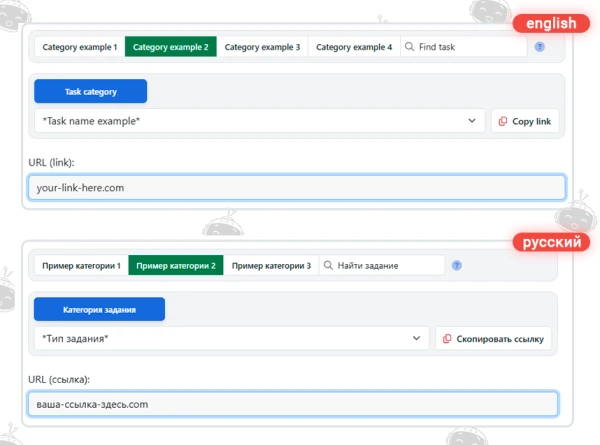
Unlike the previous example, the “Voting (registration and moderator approval required)” ad campaign has an expanded instructions field.
In the Website URL field, enter the link to the website page.
Fill out the “Instructions” field:
– describe the task completion process step by step;
– specifically note that participants must wait for manual account activation by the website moderator;
– specify the required voting option;
– list any special conditions, if necessary;
– specify how to confirm completion of the task (for example, by sending a screenshot of the voting results). If necessary, you may request the task performer’s username, registration details, and other information.
HTML tags are not allowed in the instructions. If you need to add a link, simply insert its URL into the text.
Enter the number of completions per day and click the “Save” button.
All tasks in this type of advertising campaign are manually verified by moderators using screenshots and by checking other information in accordance with the advertiser’s request.
Please note that within “Voting (registration and moderator approval required)” advertising campaigns, the advertiser may be granted the right to moderate and pay for tasks personally. This feature becomes available after submitting a support ticket to Customer Support: https://www.ipweb.pro/support.php . However, we recommend regularly monitoring task completion and, in the event of incorrect completion by a task performer, sending the task back for revision with an appropriate comment.
 IPweb
IPweb

Rate the material: