How to Make Money with a Telegram Bot
Bots are special Telegram accounts designed to automatically process user messages when users perform various actions within the messenger itself.
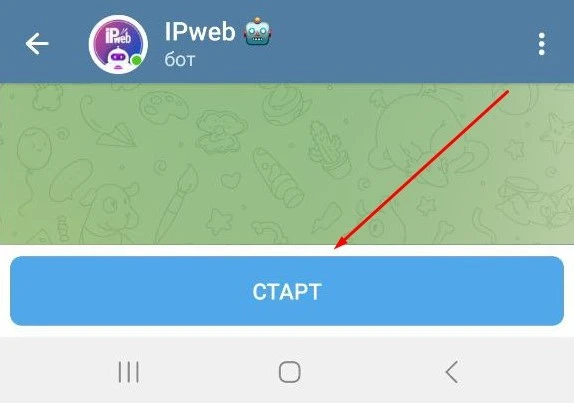
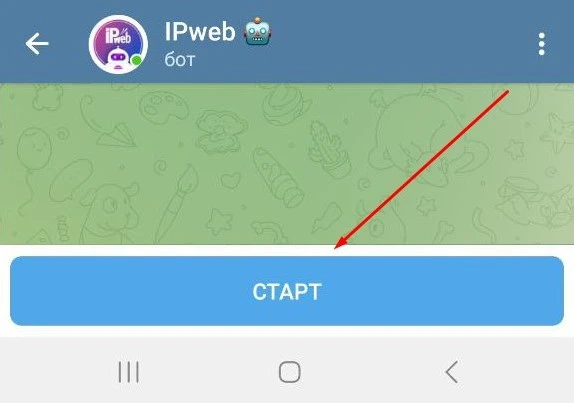
The @IPwebBot is one of the tools for earning money on our service. To start using it, go to the Telegram profile you’ll be using to complete tasks, open @IPwebBot, and tap the “Start” button.
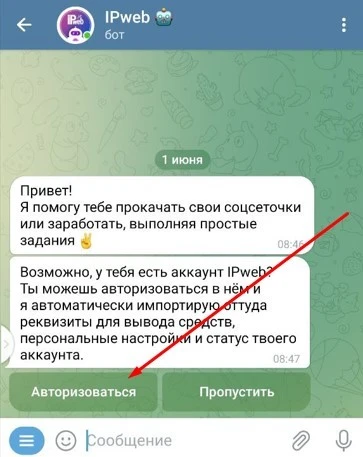
To do this, click “Log In” in the bot and, following the further instructions, log in to your account on the service.
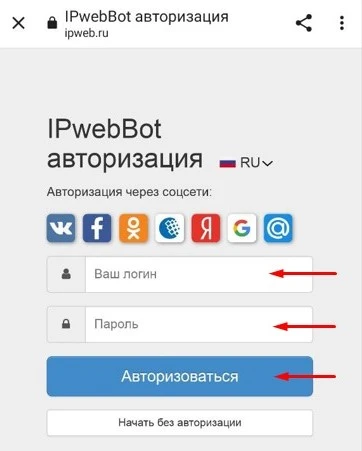
You can do this even if you’ve already completed tasks in the bot. In this case, after logging in, your two accounts—along with their data and balances—will be merged, and you’ll be able to continue working without violating the service’s rules against multiple accounts.
How to Change the Interface Language
After launching the bot, you’ll be prompted to select the language you’re most comfortable working in. If you made a mistake with your selection, you can change the language in the bot later by logging in to the IPweb.ru website.
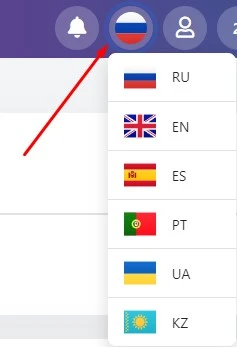
To do this, click on the country flag in the upper-right corner and select the desired language. The language will also change in the bot.
 How to Complete Tasks
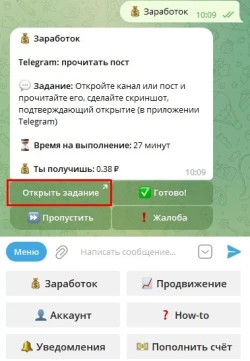
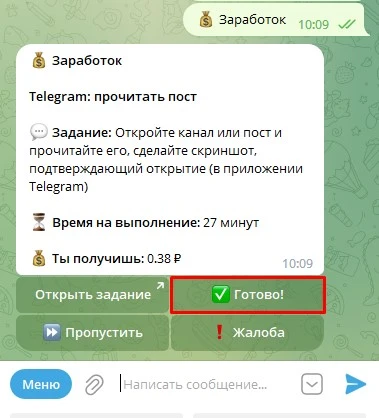
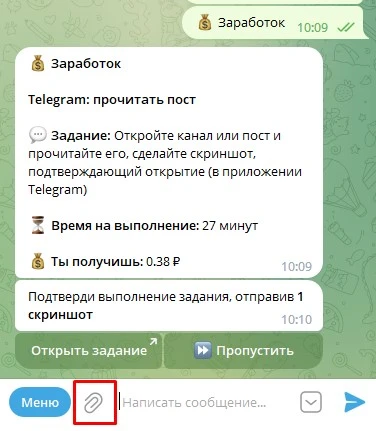
To start a task, click the “Earn” button. Read the instructions provided and click “Open Task.” Follow the link, complete the action, and take a screenshot. Return to the bot, click “Done,” then click the “paperclip” icon and upload the saved screenshot.
If the submission is successful, you’ll receive the message “Thank you, payment will be credited after the moderator reviews the screenshots,” and you can move on to the next task.
How to Take a Screenshot
Press the “Volume Down” and “Power” buttons simultaneously.
To take a screenshot using a gesture, swipe down the notification shade, then tap “Screenshot” or “Snapshot.”
Screenshots will be saved in “Gallery.” If you don’t see a “Gallery” section upon download, go to “Menu” → “My Files” or “File Manager” → “Device Storage” → “DCIM.” You’ll find the screenshots you’ve taken in “Screenshots.”
How to Link Payment Details (Wallets)
We recommend linking your payment system details the first time you launch the bot. Fill out the form with your wallet numbers (WebMoney, Yandex.Money, QIWI, Payeer, and others) to receive payments so you don’t have to wait for them to be activated (entering and changing account details can take up to 10 days if there are funds in your balance).
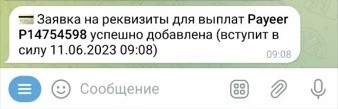
Click “Account” → “Withdrawal Details” → “Add Wallet.” In the menu that opens, select the type of new wallet, enter its number, and submit. You will receive a message confirming that the request to add the wallet has been successfully created.
How to Withdraw Money
Click “Account” → “Withdraw” and select the wallet where you want to receive the funds. In the field that opens, enter and submit the withdrawal amount or click the “Withdraw All” button.
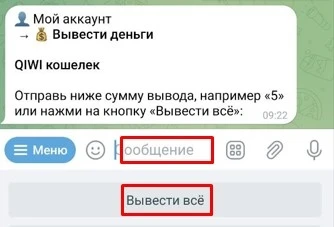
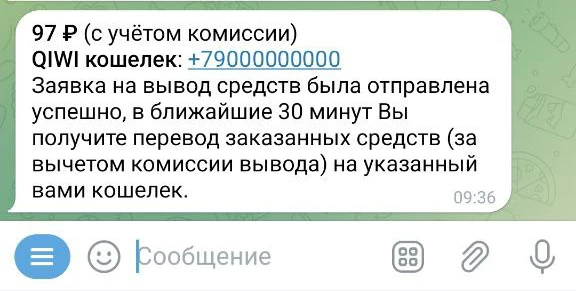
The minimum withdrawal amount is just 3 rubles.
What to do if a task wasn’t credited or you’re experiencing issues
If a task isn’t working properly or your completion isn’t being credited on social media, click “Report.”
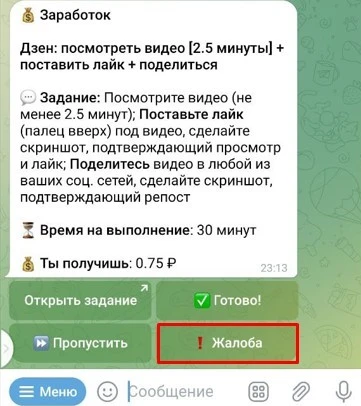
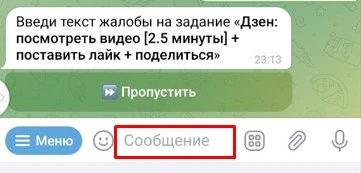
Describe the problem in detail and click the “Submit” button.
 What to do if there is no withdrawal button
If you don’t see a withdrawal button in the bot’s interface, it means you’ve registered as an “Advertiser.” If you’ve already logged in with your website account, go to your account dashboard, click the silhouette icon → Status → “Change to: User.”
If you were using the bot without logging in, you’ll first need to register an account and select the correct status to change your status. Then log in to the bot using your new account by clicking the “Log In” button.
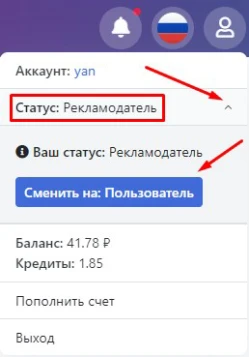
Return to the bot, and the withdrawal button will appear.
Error: “Withdrawals from your account are blocked”
Most likely, you recently topped up your account and are now trying to withdraw funds back to your original account or to another payment system. Top-ups on the service are intended solely for advertisers to create tasks. It is strictly prohibited to use the service IPweb.ru as an exchange platform for cryptocurrencies or payment systems. If you attempt to do so, your account will be blocked along with all funds in it.
To unblock your account, you must spend all of these funds on an advertising campaign or newsletter and wait until the entire amount has been spent. After that, withdrawals will be automatically unblocked.
“Account Blocked” Error
The service’s rules prohibit having more than one account for work purposes. If you have an account on the website but launched the bot without logging in, you’ve created “two accounts.” For this reason, your access to the bot may be restricted.
If you’ve launched the bot on your device using one Telegram profile, you cannot launch it here using a second profile. This will also result in the creation of a second account and cause your account to be blocked.
"Earning session unavailable" error
When you run the “Earnings” command, an earnings session is activated. If you do not complete any tasks, it will reset, and the next session will become available only after 5 minutes.
Repeatedly tapping the “Earnings” button itself can also trigger this pause.
Only run the command when you’re ready to complete several tasks.
 IPweb
IPweb
Rate the material: