Request App Installation
This section on promotional campaigns is designed to streamline the process of promoting apps (including gaming software) and to expand the affiliate network of advertisers on the websites of software content rights holders.
- Install and launch the Android app, write a review on the Play Store
- Install the game and play it [up to 30 minutes]
- Install and launch the iOS app, write a review on the App Store
- Install the app + sign up + submit your data
- Install the app + sign up for a trial [at least 1 week]
- How do I get the app code on Google Play?
- How do I order an advertising campaign to promote game or app installs?
For example, the link might look like this:
Or like this: Or like this:Advertising for paid software is not permitted in the “Installs” ad campaign type. Creating campaigns to promote paid content or services is available in the “Purchases” ad campaign section.
Install and launch an Android app, write a review on the Play Store
As part of this ad campaign, you can request that users download and launch any app for the Android operating system from the official Play Store, as well as write reviews for the app.
Create a task without a review
Install a game + play [up to 30 minutes]
As part of this advertising campaign, users can download, install, and register for a desktop game, and achieve specific goals that can be completed within 30 minutes. For example: reaching a certain level in the game.
Install and launch an iOS app, write a review on the App Store
As part of this advertising campaign, you can order the download and launch of any app for the iOS operating system from the official App Store, as well as the writing of reviews for the app. Please note that if the app is larger than 30 MB, you must enable the “Premium” feature.
Create a task without a review
Install the app + register + submit data
This type of task does not include installing mobile apps for Android and iOS operating systems. As part of this promotional campaign, you can download and install various software for personal computers and register as a user on the software owner’s official website. For example, installing ESET Internet Security antivirus via a referral link (30-day trial version).
Install the app + sign up for a trial [at least 1 week]
As part of this advertising campaign, you can arrange for the installation of an app on any device (PC or mobile) followed by registration and a subscription to a free trial period for the services provided on that device, or for a minimal fee (e.g., 1 ruble). The trial subscription must allow the user to cancel it at any time. The task completion period is set at 7 days. This is the maximum period for which you can request that the trial subscription be “maintained.” In the report, you can request the first screenshot showing the subscription activation immediately, and the second one after the desired period of time (up to one week), where it will be clear that the subscription is still active.
How do I get the app ID on Google Play?
If you want the task to be performed in a specific app, you’ll need to enter its code in the designated field, which becomes available only after activating “Premium” mode in your ad campaign.
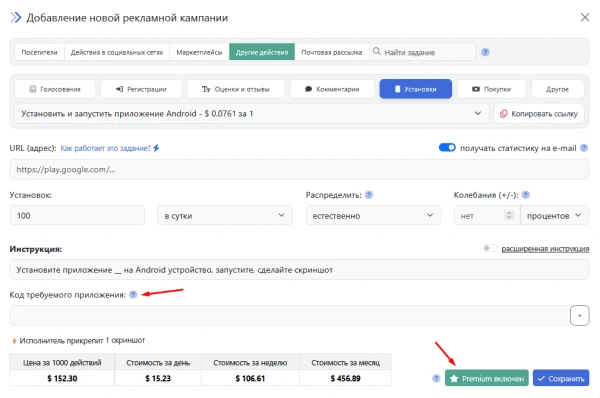
To get the code:
- Go to the Google Play homepage.
- Find the app you want using the “Search” field.
- In the browser address bar, copy everything after “id=” and up to “&” (if present), as shown in our screenshot:
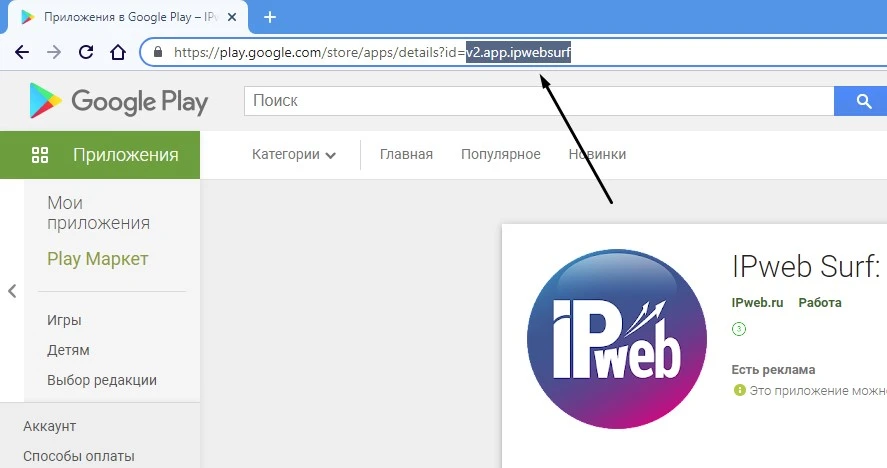
- The app code can look different. Most often, it starts with “com.xxx” and may consist of two or more words.
How do I order an advertising campaign to promote game or app downloads?
Log in to your IPweb account, click the “Promotion” — “Your Sites” button in the menu, find the “Add Advertising Campaign” button in the upper-left corner, and select the “Other Actions” promotion type. On the “Settings” tab, select the appropriate ad campaign type from the drop-down list
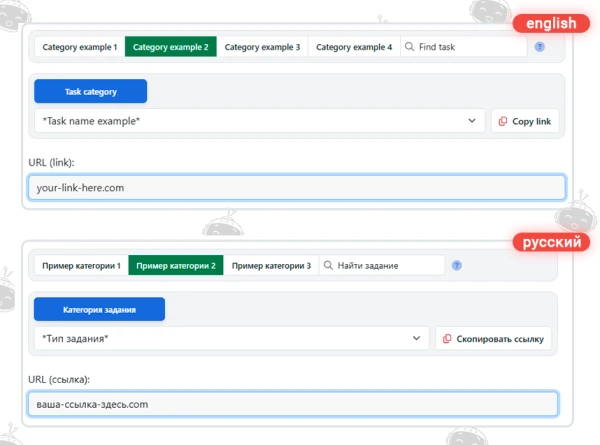
For example, select the “Install and Launch Android App” campaign type if you want users to download and launch the app, and “Install and Launch Android App, Write a Review on the Play Store” if you want users to download, launch the app, and leave a positive review.
In the “URL (Address)” field, enter the link to your app on the Play Store, edit the instructions, and specify the number of installs and launches.
Unlike the previous example, the ad campaigns “Install the game + play [up to 30 minutes],” “Install the app + register + submit data,” and “Install the app + sign up for a trial [at least 1 week]” have an expanded instructions field.
In the Website URL field, enter a link to the website page.
Fill out the Instructions field:
- specify the name of the game or app required to complete the task, or clarify the name if the website page contains multiple download options or a list of games available for download;
- specify the goal or the results to be achieved in the game when completing the task;
- Specify any special conditions, if necessary;
- Specify how completion of the task will be verified (for example, by sending a screenshot of the installed and running app, a specific page of the official website, or a screenshot of a specific game level). If necessary, you may request the contractor’s in-game username, registration details, and other information.
HTML tags are not allowed in the instructions. If you need to add a link, insert its URL into the text.
Enter the number of completions per day and click the “Save” button.
It is important that the instructions for performers be written clearly and in detail. This will make it easier for users to complete the task correctly. It will also be easier for moderators to verify completion, since all tasks in this type of advertising campaign are checked manually by moderators using screenshots. You can ask the performer to provide additional information for verification (such as a login); moderators will take this into account during the review. The more clearly you describe the instructions, the more consistent and predictable the results will be.
For advertising campaigns such as “Install the game + play [up to 30 minutes],” “Install the app + register + submit data,” and “Install the app + sign up for a trial [at least 1 week],” it is possible to grant the advertiser the right to moderate and pay for tasks directly. This feature becomes available after submitting a corresponding request to Support. However, we recommend regularly monitoring task completion and, in the event of incorrect task completion by the task performer, sending the task back for revision with an appropriate comment.
 IPweb
IPweb
Rate the material: