How to Install IPweb Surf for Android
These instructions are designed specifically to help you easily install our app, even if this is your first time.
Step 1. Download the file
- Open your phone’s browser.
- Go to this link: https://www.ipweb.pro/ipweb_surf.php
- Find the “Download IPweb Surf” button and tap it.

- Warning: A warning may appear at the bottom or in the center of the screen: “This file may be dangerous” or “This type of file may cause harm.”
- Don’t worry! Your phone displays this message for absolutely any file downloaded from outside of Google Play.
- Go ahead and tap “Download Anyway” (or “Yes,” “Save”).
Wait for the file to download. When the download is complete, an “Open” button will appear. Tap it.
If you accidentally closed the download notification, just find the “My Files” app (or “File Manager,” "Files") on your phone, go to the "Downloads" folder, and tap the downloaded file IPweb named "IPwebSurf_Android.apk."
About “Google Play Protect”
During installation (regardless of your phone model), a white window from “Google Play Protect” may pop up on the screen with the text: “Blocked by Google Play Protect. This app may be unsafe.”
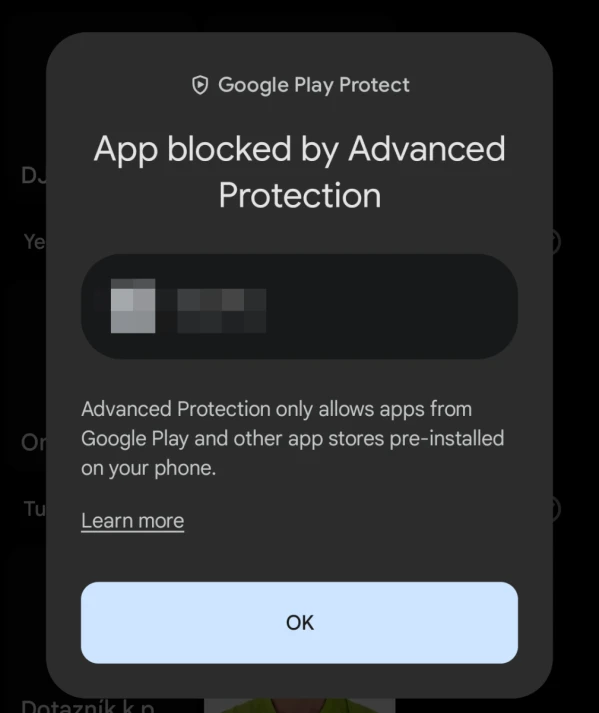
Since the app IPweb is designed for making money and working online, Google’s algorithms sometimes mistakenly flag it as suspicious.
What to do:
- Do not tap the large “OK” button (it will cancel the installation).
- Tap the small "Learn more" text.
- A menu will open, and you’ll see “Install anyway.” Tap it.
- The app is successfully installed!
Step 2. Installation
- Click on the downloaded IPweb file.
- In the window that appears, click "Install."
- Wait for the installation to finish, then tap “Open.” Done!
If your phone displays the message: “For security reasons, your phone is blocking the installation...”
> Tap the “Settings” button directly in this message.
- > You’ll see the option “Allow installation from this source” (or “Unknown sources”).
- - > Toggle the switch so that it turns on (becomes blue or green).
Tap the "Back" button, then return to step 1.
Installation on Samsung
New Samsung smartphones have a special security feature that blocks any files from the internet. You’ll need to temporarily disable it.
Preparation (Disabling “Auto Blocker”):
- Open your phone’s “Settings” (the gear icon ⚙️).
- Scroll down and find the “Security and Privacy” section. Tap it.
- Find the “Auto Blocker” option. Tap it.
- Turn off the toggle (it should turn gray).
- Your phone may ask you to place your finger on the sensor or enter your screen lock passcode to confirm—this is normal.
Continue with the installation:
1. Now go back to the downloaded file IPweb and tap it.
2. The “Install” button will appear. Tap it and wait for the installation to finish.
Installation on Xiaomi, Redmi, and POCO
These phones have a unique feature—they display a very intimidating warning with a timer to try to make you change your mind.
- Tap the downloaded IPweb file.
- A window will appear asking if you want to install it. Tap “Settings.”
- Toggle on “Allow installation from this source.”
- The screen will dim, and a large window will appear with a red warning icon and a 10-second countdown.
Don’t panic—this is just Xiaomi’s standard “scare tactic.” - At the very bottom of this window, check the box next to the words: “I am aware of the potential risks and accept responsibility...”.
- Wait for 10 seconds to pass, and the “OK” button will turn blue. Tap it.
- Go back one step (the ⬅️ arrow) and tap “Install.”
- Note: After installation, Xiaomi’s built-in antivirus may start scanning the app.
Wait until the scan is complete, then tap “Open” at the bottom of the screen.
Installation on Huawei and Honor
Huawei phones have a feature called “Pure Mode,” which prevents you from installing anything other than apps from their own AppGallery store.
Preparation (Disabling “Pure Mode”):
- Open your phone’s “Settings” (the gear icon ⚙️).
- Scroll all the way to the bottom and select “System and Updates.”
- Find the “Pure Mode” option.
- Tap the “Turn Off” (or “Disable”) button. Confirm the action.
Continue with the installation:
5. Tap the downloaded file IPweb (in the “Downloads” or “Files” folder).
6. Your phone may display a warning about risks. Tap “Continue Installation” (or “Ignore”).
7. Allow installation from this source (you’ll need to slide the toggle as described in the instructions above).
8. Tap “Install.” The app will appear on the home screen!
 IPweb
IPweb

Rate the material: