Troubleshooting issues that arise when running the IPweb Surf program on Windows
Troubleshooting issues with IPweb Surf
First, make sure you are using the latest version of the program.
If possible, use a modern operating system (Windows 10 or newer).
Make sure you have the latest version of .NET Framework installed. You can download it here.
Conflicts with other applications
When installing and using IPweb Surf, the program may “slow down” or “freeze” due to conflicts with antivirus programs installed on your computer. You must add IPweb Surf to the exceptions list of these programs, or temporarily disable antivirus software, firewalls, and other security software.
Startup issues on Windows 10 and later
If the application “crashes” upon startup on Windows 10 and newer versions — we recommend completely disabling your antivirus software > using the “Task Manager” to verify that there are no antivirus-related processes running in the background > completely uninstall the IPweb Surf application and reinstall it using the link here. If this does not help — please contact support.
Startup issues on Windows XP
If you are using the outdated Windows XP operating system, we strongly recommend that you upgrade to a more modern version.
If you encounter issues with .NET Framework 4 on Windows XP SP3, you must download NET_Framework_Cleanup_Tool and remove all .NET Framework 4 entries from the registry. Next, restart your computer. Then install the dotNetFx40_Client_x86_x64 package and IPweb Surf. The program will prompt you to install NET FRAMEWORK 4. Agree to the installation. We thank user kornet27 for providing this information.
The “Update,” “Skip,” “Report,” and ‘Block’ buttons are not visible
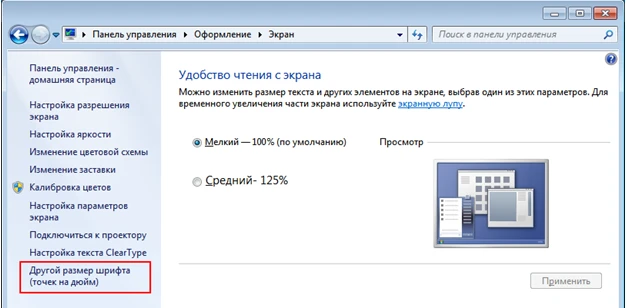
If you cannot see the “Update,” “Skip,” “Report,” “Block” buttons in the program's control window, or if the task isn't fully displayed, try expanding the program to full screen; we do not recommend working in a window less than 1000 pixels wide. If that doesn't help, your system likely has a non-standard font size set. Set it back to “Small - 100%” in “Control Panel” - ‘Appearance’ - “Display”:
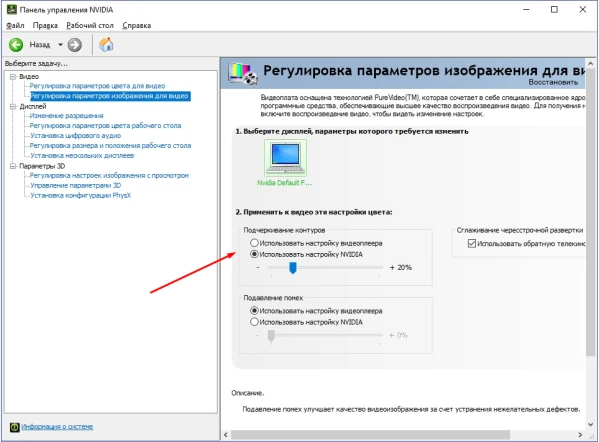
Sometimes this issue occurs when using Windows 10 and certain Nvidia graphics cards (such as the GeForce GT 330M). If this applies to you, try the following:
- In the NVIDIA Control Panel, under the “Video Settings” section, in the “Anti-aliasing” field, select “Use NVIDIA setting”.
- Then, in Windows, set the display scale to 100%.
Troubleshooting Black Screen Issues
If you see a black screen after launching IPweb Surf, do the following:
Exit (do not minimize) the IPweb Surf program.
Go to the IPweb Surf folder at the path “C:\Users\admin\AppData\Roaming\IPweb Surf”. In the IPweb Surf folder, delete the following files: dbghelp.dll, d3dcompiler_47.dll, d3dcompiler_43.dll.
After launching IPweb Surf, the problem should be resolved.
 IPweb
IPweb
Rate the material: