Copying campaigns

Read 2 minutes

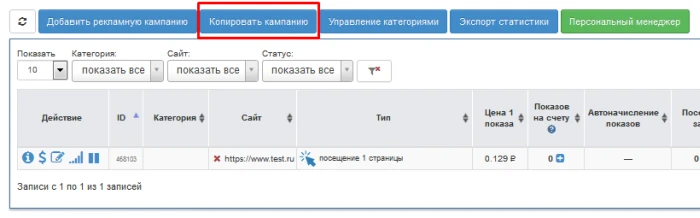
The “Copy Campaign” feature is useful when you need to create multiple campaigns with similar settings, or when you want to change the URL of the promoted website without altering its settings. To copy an ad campaign, click the “Copy Campaign” button on the main campaign management page (menu item: “Your Sites”):
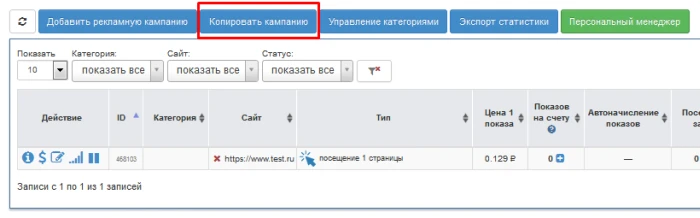
Copying campaigns - 1
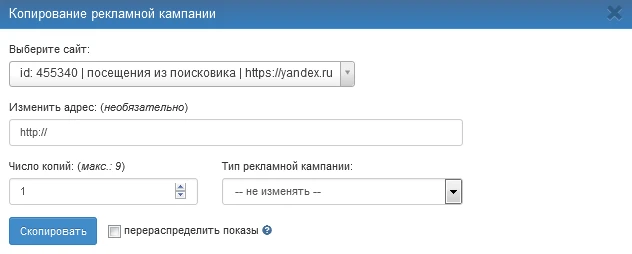
Select the desired site (ad campaign), set the number of copies (e.g., 1), enter the URL for your new campaign or leave it blank to create an exact copy, and click “Copy”
Copying campaigns - 2
Additionally, you can copy an advertising campaign from its settings window. To do this, first go to the campaign settings from the main campaign management page:
Copying campaigns - 3
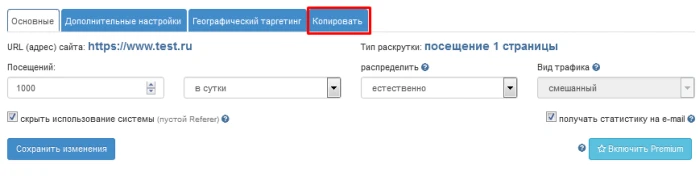
Next, select the “Copy” tab
Copying campaigns - 4
Set the number of copies, for example 1; you can also specify the desired URL for your new campaign, or leave it blank to copy it exactly as is, and click “Copy.”

Additionally, you can now change the campaign type when copying an ad campaign. To do this, select the desired type from the drop-down list in the lower-right corner and click the “Copy” button.
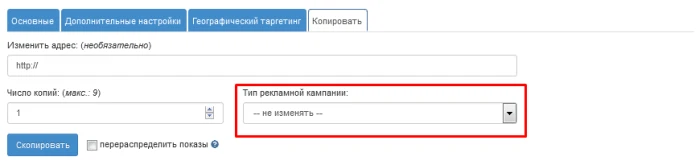

Copying campaigns - 5

IPweb

Rate the material:

Rating: 0 out of 5. Total ratings: 0.
Last modified

I don't understand anything! Help :-(