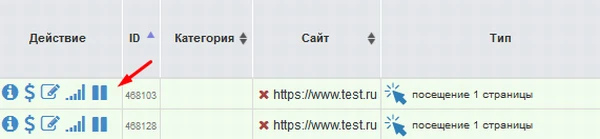
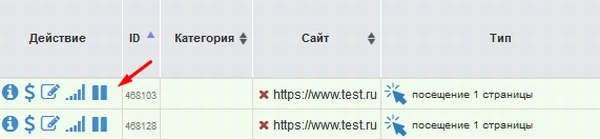
If you already have an advertising campaign set up but need to temporarily pause it for any reason, you can use the “Pause Campaign / Resume Campaign” icon in the control panel “Promotion” - “Your Sites” Pause the ad campaign:
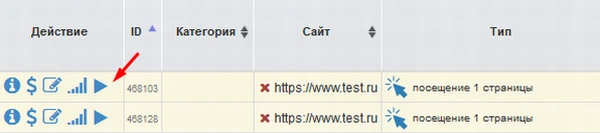
Resume the ad campaign:
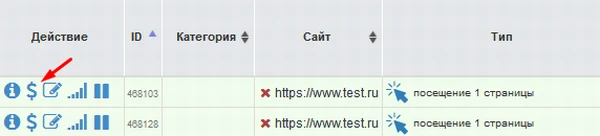
To pay for the created ad campaign, select the “Pay” icon next to the ad campaign
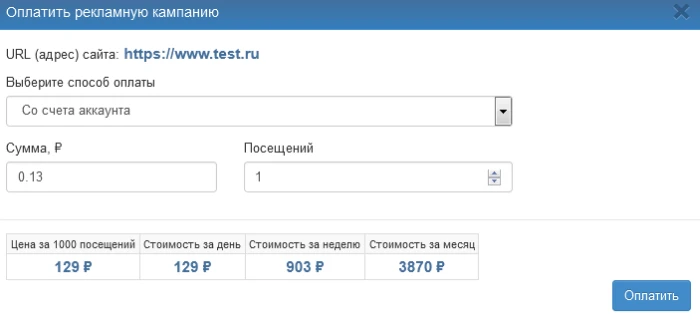
After that, a payment window will appear where you need to select a payment method, specify the amount or number of visits, and click the “Pay” button. If you select the “Pay from account” option, the required amount will be automatically deducted from your main account (provided there are sufficient funds to cover the campaign).
If you have funds in your account, you can add impressions by clicking the icon in the “Impressions on Account” column, specifying the number of impressions (how many you want to add to your advertising campaign account), and clicking the “>>” button
To deduct funds from the advertising campaign account, “add” them using this same tool by placing a “-” (minus) sign before the number. For example, by specifying the number of impressions as “-100” and clicking the “>>” button, you will transfer 100 impressions from the ad campaign account to the main account balance.
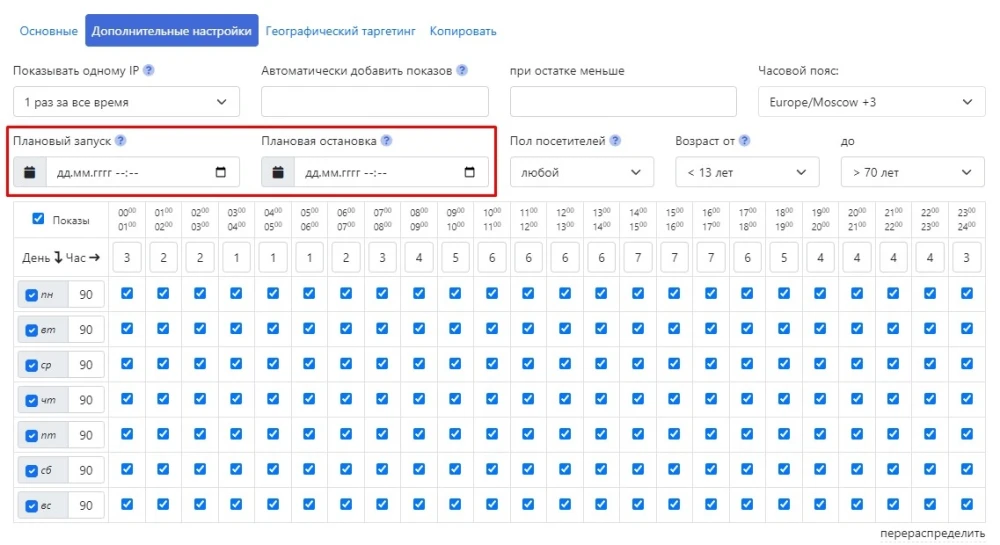
You can also schedule the start and end of a campaign in advance. To do this, select a date in the field highlighted in the screenshot below.


 IPweb
IPweb