Viewing Assignment Statistics
We’re pleased to present our updated statistics!
They now open in a full-page view and are accessible via a separate link for each task.
The way to access the statistics hasn’t changed at all—just click the 📶 button in the row with your task on the “Campaigns” page.

The main advantages of the new section are that the statistics have now become a true task management tool.
Here, you can not only view detailed performance statistics but also see complaints from contractors, edit the task, moderate task submissions, review contractor data, and add funds to the task.
Below, we’ve included screenshots of the new task page and will briefly explain what each section is for.
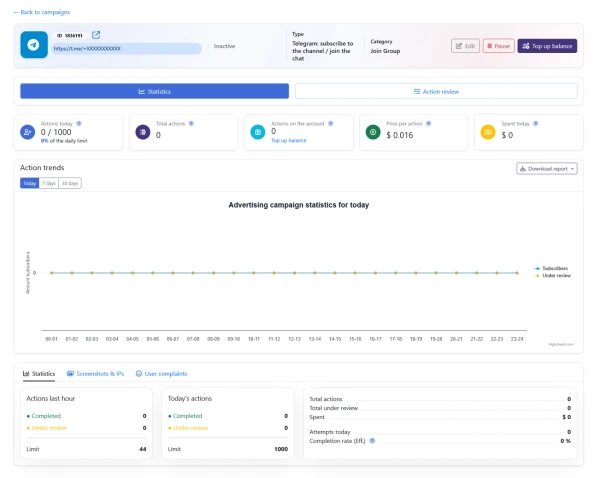
The top section displays the task number (useful for navigating the task list and when contacting support), the task status (active or inactive), the task type and category, as well as quick-action buttons: edit campaign, start/stop the task, and top up its balance.
Below, you’ll see two tabs: “Statistics” and “Action Verification,” if screenshot verification of performers’ actions is available for the task.
The task moderation feature is not available everywhere: for example, it will not be available for tasks where performers’ actions are automatically verified by our systems.
The central “Statistics” tab is the key one and contains a wide variety of indicators:
“Actions Today” —how many actions on the task were completed by our contractors today. The
number in “% of Daily Limit” depends on how many actions you specified as your desired daily target.
“Total Actions”—how many actions for the task have been completed so far.
"Actions Remaining" — how many actions are still left in the task’s balance. Different task types have different costs per action—if you topped up the campaign balance with 100 actions, this is the number that will be displayed here. If 30 out of 100 actions on the balance have been completed, then 70 actions will remain here (i.e., on the balance).
“Price per Action”—the metric we discussed in the previous section. This shows the cost of a single completion of this type of task.
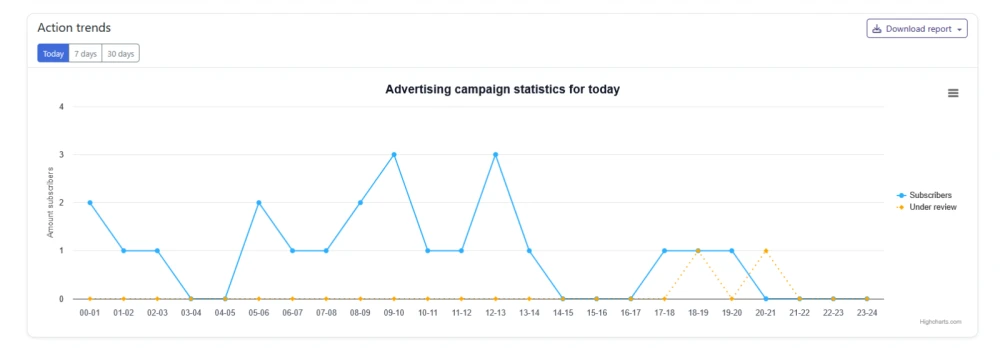
“Action Trends”—a graph showing completions by hour, day, or week. You can configure this using the corresponding buttons at the top left.
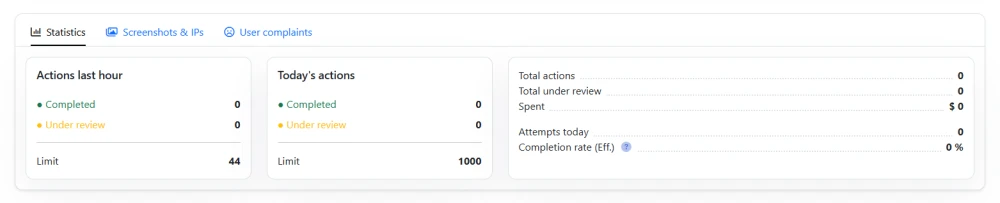
The banner below contains even more detailed information about the performers’ actions:
On the “Statistics” tab: the total number of verified and unverified actions, actions per hour, the action limit from the task settings, as well as failed attempts and efficiency.
It’s very important to pay close attention to the last two metrics: Efficiency is calculated as “the total number of successful completions divided by the total number of completions.” Efficiency varies by task, but on average, if a task’s efficiency is 30% or lower, this is a reason to analyze what’s wrong with the task. Perhaps the task is technically too difficult to complete; perhaps users are put off by the content of the advertised resource; or perhaps the number of actions required for the task does not justify its cost.
Task performers are real people (this is our key feature), and they have the option to decline a task by skipping it. It’s important to investigate the reasons why this happens—this is the key to improving task completion rates.
The “Screenshots and IP Addresses” tab may vary depending on the task type: if the task involves visiting a website and/or clicking on it, verification is likely handled not through screenshots but by our automated systems. Accordingly, in such cases, the tab will simply be labeled “IP Addresses.”
On this tab, you’ll find screenshots submitted by task completers, along with brief information about them: the status of the screenshot’s review by a moderator, the screenshot itself showing successful completion, and the task completer’s IP address and geolocation.
The “Contractor Complaints” tab contains information about contractors’ complaints regarding the task. It is very important for campaign analytics and, along with the task’s efficiency, can be the key to understanding why a task might be performing poorly. We recommend paying close attention to user complaints—they often contain very important information about the promoted resource.
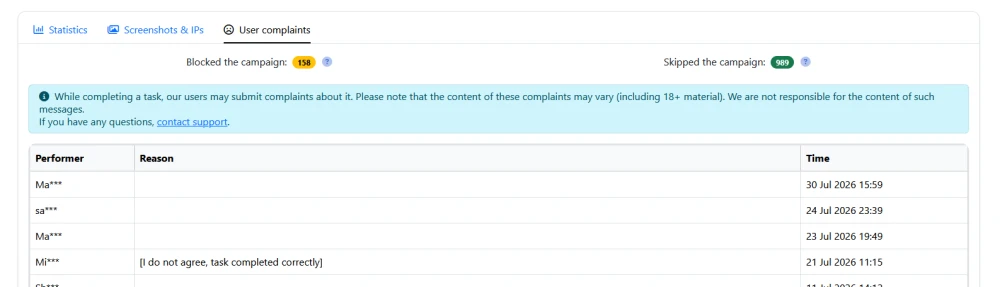
Above the completion chart, and if your task is supported by user screenshots, you’ll see two tabs right away:
“Statistics”— we’ve already covered this one.
“Action review”— this section is available for certain tasks and only for those confirmed by screenshots. In this tab, you can not only view the screenshots that task performers have submitted as proof that they’ve successfully completed the task. Here, you can also manually review each submission, reject or approve it, and if you don’t want to do this yourself, our moderators will handle it.
Please note: payment rejections are reviewed by moderators before they are “sent” to the contractor. Otherwise, it would be possible to reject any submission—both correct and incorrect ones.
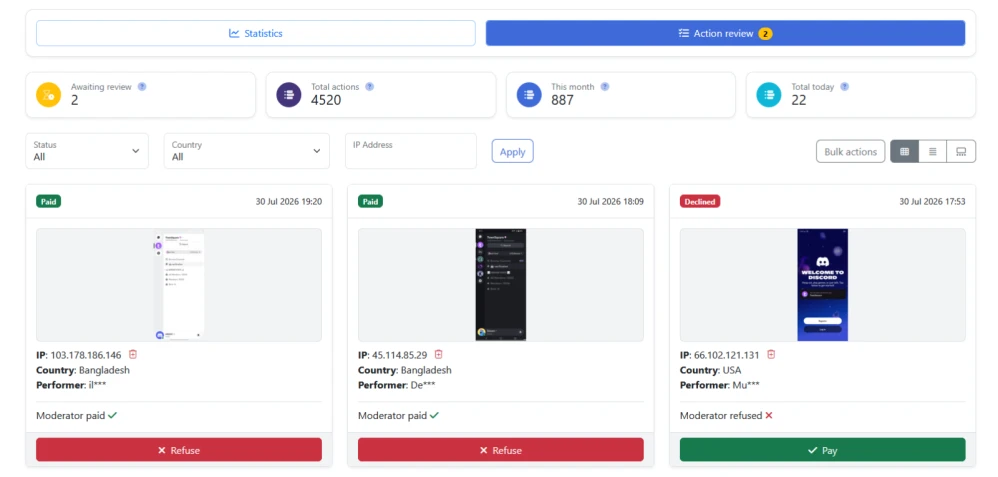
In the top bar with filters, sorting, and display settings, you’ll also find the “Bulk Actions” feature—you can use it to pay for all submissions at once.

If you want to download detailed statistics for a task, you can do so on the general “Statistics” tab by clicking the “Download Report” button next to the task completion chart.
 IPweb
IPweb

Rate the material: