Comments
As part of these advertising campaigns, you can order comments on websites that require login, registration, or activation via email or phone. We’ve added the option to have task performers write a detailed (long) review or comment (at least 5 lines).
Comment
This type of advertising campaign allows you to increase the number of comments on the desired website page that does not require registration or authorization. For example, go to a blog page and leave a comment.
Comment (login required)
This type of advertising campaign allows you to increase the number of comments on a specific website page that requires a login. For example, go to the page, log in to a social network, and leave a comment.
Comment (registration required)
This type of advertising campaign allows you to increase the number of comments on a specific page of a website that requires registration. For example, go to a forum page, register, and leave a comment.
Comment (registration and email activation required)
This type of advertising campaign allows you to increase the number of comments on a specific page of a website that requires registration and email activation. For example, go to the website page, register, confirm activation via email, and comment.
Comment (requires registration and phone activation)
This type of advertising campaign allows you to increase the number of comments on a specific website page that requires registration with phone activation. For example, go to the portal page, register, confirm activation via phone, and leave a comment.
Long Review/Comment
This type of advertising campaign allows you to increase the number of comments on the desired website page.
The requirement to register and activate an account on the website, as well as the length of the review/comment, is specified in the task instructions.
How to order comments
Copy the link to the page where you need to leave a comment.
The link will look like this:
Log in to your IPweb account. In the left-hand menu, click “Promotion” — “My Campaigns” — “Add Advertising Campaign” — “Other Actions” — “Comments”
Enter a link to a website, forum, or blog and the number of comments. If necessary, edit the instructions for contributors and click the “Save” button.
You can specify the text of the comment that the user will add to the site. To do this, enter a subject (if necessary), the comment text, and click the “Add” button. You can also select the commenter's gender.
The ability to select the comment language from 4 system languages (Russian, English, Spanish, Portuguese) has been added.
By default, when creating an ad campaign, the language is set to “any,” and the contributor can comment in their native language.
Regardless of the selection, a corresponding notification will appear in the advertising campaign.
For example, “The comment must be in English.”
This option is available to both the advertiser and the moderator.
Multiple language selection is not currently available.
If you require the task to be localized, the relevant conditions must be set in the advertising campaign settings on the “Geographic Targeting” tab.
Unlike the example above, the “Long Review/Comment” ad campaign template has some differences. There is no form for the advertiser to add their own comment, nor is there an option for demographic targeting. If desired, the advertiser can add these requirements to the extended instructions for completing the task. It is also possible to add links to third-party resources for ideas for the review/comment.
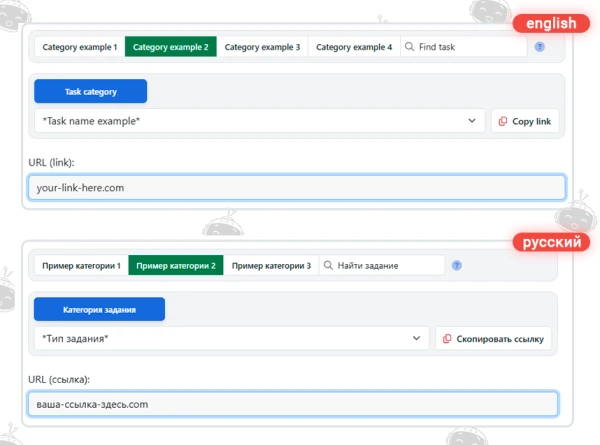
In the Website URL field, enter a link to the website page.
Fill out the Instructions: field
- specify whether registration on the website and account activation are required;
- specify the main requirements for the review/comment;
- if necessary, provide links to resources for review/comment ideas;
- specify any special conditions, if applicable;
- demographic targeting may be added;
- Specify how to confirm task completion (e.g., send a screenshot of the published review/comment and/or links to it). If necessary, you may request the contractor’s login, registration details, and other information.
You can fill out the instructions using a template.
HTML tags are not allowed in the instructions. If you need to add a link, simply insert its URL into the text.
Enter the number of completions per day and click the “Save” button.
All tasks in this type of advertising campaign are manually reviewed by moderators using screenshots and verification of other information in accordance with the advertiser’s request.
Please note that within the framework of “Large Review/Comment” advertising campaigns , the advertiser may be granted the right to moderate and pay for tasks personally. This feature becomes available after submitting a corresponding request via the Support Service ticket: https://www.ipweb.pro/support.php. We recommend regularly monitoring task completion and, in the event of incorrect task completion by the contractor, sending the task back for revision with an appropriate comment.
 IPweb
IPweb

Rate the material: