Inflating Purchase Numbers
This advertising campaign will help you boost sales of your product or service in terms of statistical metrics and increase interest in your product. You can order purchases of goods on a marketplace, purchases of goods or services on your website, app purchases, or account top-ups by invited participants through referral programs.
Available tasks include purchases ranging from 0 to 500 rubles with simple authorization/registration, and account top-ups of up to 500 rubles requiring account verification.
Important: The purchase amount includes not only the cost of the product or service but also all service fees that the contractor will incur while completing the task.
A link to a product listing on the marketplace might look like this:
https://www.ozon.ru/product/penrad-ruchka-perevaya-tolshchina-linii-0-3-mm-tsvet-siniy-1-sht-519145408/
for purchasing an app, like this:
https://play.google.com/store/apps/details?id=org.telegram.messenger
for a partner website:
https://p.winline.ru/s/FkXZS9lLw5?statid=6353_&promocode=***
To create a purchase campaign, log in to your IPweb account. In the left-hand menu, click “Promotion” → “My Campaigns” → “Add Advertising Campaign” → “Other Actions” → “Purchases” → select the option that suits your budget and requirements.
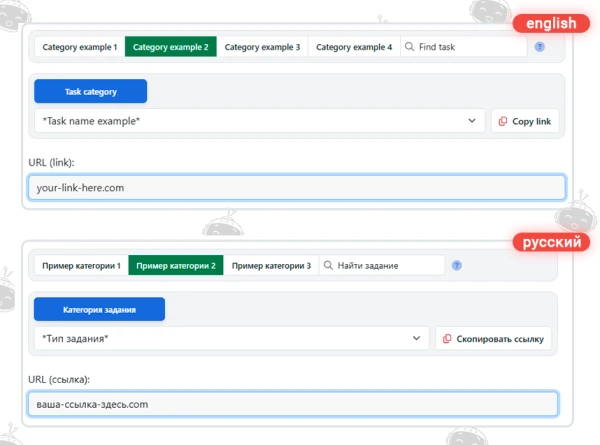
Enter the link to your service and the number of completions for the desired period. Provide instructions in as much detail as possible. This will help task performers complete the tasks correctly and reduce the number of task rejections.
How to write instructions:
- Describe in detail each step the contractor must take to complete the purchase.
- If authorization is required for the purchase, specify this here. For tasks requiring verification, describe the identity confirmation process.
- Provide a promo code for contractors, if needed.
- Describe the steps to take after the purchase is paid for. For example, after the purchase, the contractor may write a review and rate your product on the marketplace. In this case, take into account the timeframe for the user to receive the product. The task has a 24-hour deadline. If it takes longer to receive the product, wait for a report from the seller after the task deadline has passed.
Click the “Save” button. The campaign will immediately be sent for moderation and will launch after it passes review.
For advertising campaigns involving purchases, it’s possible to grant the advertiser the right to moderate and pay for tasks directly. This feature becomes available after submitting a request to Support. In this case, you must regularly monitor task completion and perform reviews on time. If a task is not completed correctly by the contractor, you must send it back for revision with an appropriate comment. If you have accepted a verification task but fail to complete it on time, we will be forced to intervene and decide on the payment ourselves.
We explain how to configure other advertising campaign settings here.
 IPweb
IPweb

Rate the material: